MikroTik DHCP Server Setup: Step-by-Step Configuration Guide
1. What Is a DHCP Server and How Does It Work?
DHCP automates the assignment of IP configuration to network clients. Without it, every device would need a
manually configured static IP, mask, gateway, and DNS — unmanageable on any real network. The exchange
follows a four-step process commonly remembered as DORA:
- Discover – the client broadcasts a request looking for any DHCP server.
- Offer – the server offers an available IP address from its pool.
- Request – the client formally requests that offered address.
- Acknowledge – the server confirms (ACK) and records the lease.
On MikroTik RouterOS the feature set is split into four cooperating objects. Understanding this separation is the
key to mastering DHCP on MikroTik:
- IP Pool – the range of addresses available to hand out.
- DHCP Network – the options delivered to clients (gateway, DNS, domain, netmask).
- DHCP Server – the service instance bound to one interface that ties the pool and network together.
- Leases – the live record of which client holds which address (and where you create reservations).
2. Prerequisites and Lab Topology
Before you start, make sure you have:
- A MikroTik router (RouterBOARD, CCR, CHR, or hAP) running RouterOS 7.x.
- Winbox or SSH/terminal access to the router.
- An interface (or bridge) reserved for your LAN that does not already have a competing DHCP server.
Throughout this guide we will use the following example values — substitute your own where needed:
| Parameter | Value |
|---|---|
| LAN interface / bridge | bridge-lan |
| LAN subnet | 192.168.88.0/24 |
| Router (gateway) IP | 192.168.88.1 |
| DHCP pool range | 192.168.88.10 – 192.168.88.254 |
| DNS servers | 1.1.1.1, 8.8.8.8 |
| Lease time | 1 day (1d) |
Tip: Leave the bottom of the subnet (for example .2–.9) outside the pool so you
have room for static infrastructure like switches, access points, and printers.
3. Method 1: Quick Setup with the Winbox DHCP Wizard
The fastest way to get a working DHCP server is the built-in wizard. This is ideal for home labs or simple
deployments where you just need it working in 60 seconds.
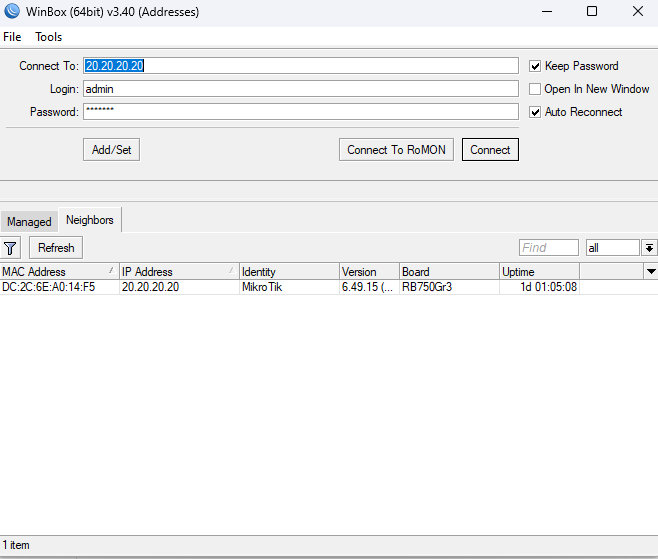
- Open Winbox and connect to your router.
- Make sure your LAN interface already has an IP address (e.g.
192.168.88.1/24under IP → Addresses). The wizard derives the subnet from this. - Go to IP → DHCP Server.
- Click the DHCP Setup button.
- DHCP Server Interface: choose your LAN interface or bridge (e.g.
bridge-lan) and click Next. - DHCP Address Space: the wizard auto-fills
192.168.88.0/24— confirm and click Next. - Gateway for DHCP Network: confirm
192.168.88.1→ Next. - Addresses to Give Out: adjust the range (e.g.
192.168.88.10-192.168.88.254) → Next. - DNS Servers: enter
1.1.1.1and8.8.8.8→ Next. - Lease Time: set
1d(one day) → Next. - You should see “Setup has completed successfully.”
That’s it — clients on that interface will now receive addresses. If you prefer to understand and
control every object (recommended for production), use the CLI method below.
4. Method 2: Full Manual Setup via CLI (Recommended)
The CLI method gives you full control and is the same regardless of RouterOS version. Open New Terminal
in Winbox or connect via SSH, then follow these six steps.
Step 1 – Prepare the Bridge / Interface
If you do not already have a LAN bridge, create one and add your LAN ports to it. Skip this if your LAN already exists.
/interface bridge
add name=bridge-lan comment="LAN bridge"

/interface bridge port
add bridge=bridge-lan interface=ether2
add bridge=bridge-lan interface=ether3
add bridge=bridge-lan interface=ether4
add bridge=bridge-lan interface=ether5
Step 2 – Assign the Gateway IP Address
The router needs an IP in the subnet it will serve. This becomes the default gateway for clients.
/ip address
add address=192.168.88.1/24 interface=bridge-lan comment="LAN gateway"
Step 3 – Create an IP Address Pool
The pool defines which addresses can be handed out. We exclude .1–.9 for static use.
/ip pool
add name=dhcp-pool-lan ranges=192.168.88.10-192.168.88.254
You can specify multiple, comma-separated ranges if needed, e.g. ranges=192.168.88.10-192.168.88.100,192.168.88.150-192.168.88.254.
Step 4 – Define the DHCP Network (Gateway, DNS, Domain)
The DHCP network specifies the options delivered to clients within a given subnet.
/ip dhcp-server network
add address=192.168.88.0/24 \
    gateway=192.168.88.1 \
    dns-server=1.1.1.1,8.8.8.8 \
    domain=lan.local \
    comment="LAN DHCP options"
Note: The netmask is derived from the address field
(/24). If you omit dns-server, RouterOS can advertise the router itself as DNS when its
own DNS cache is enabled (/ip dns set allow-remote-requests=yes).
Step 5 – Create the DHCP Server
This binds everything together on the LAN interface.
/ip dhcp-server
add name=dhcp-lan \
    interface=bridge-lan \
    address-pool=dhcp-pool-lan \
    lease-time=1d \
    disabled=no \
    comment="LAN DHCP server"
Critical: Make sure disabled=no. A server created in a disabled state hands out
nothing and is the single most common “why isn’t DHCP working” mistake.
Step 6 – Verify the Configuration
Confirm each object exists and that the server is running.
# Check the server status (should show no "I" / invalid flag)
/ip dhcp-server print

# Check the network options
/ip dhcp-server network print

# Check the pool and currently used addresses
/ip pool print
/ip pool used print

# Watch live leases as clients connect
/ip dhcp-server lease print
Connect a client (or run ipconfig /renew on Windows, sudo dhclient -r && sudo dhclient
on Linux) and you should see a dynamic D lease appear in the lease table.
5. Static (Reserved) DHCP Leases
A static lease guarantees a specific device always receives the same IP — ideal for printers, servers, NAS,
access points, and cameras. There are two ways to create one.
Option A – Reserve from an existing dynamic lease
The easiest method: in Winbox go to IP → DHCP Server → Leases, select the active lease for
your device, and click Make Static. The lease now persists across reboots.
Option B – Create the reservation manually (CLI)
/ip dhcp-server lease
add address=192.168.88.20 \
    mac-address=AA:BB:CC:DD:EE:FF \
    server=dhcp-lan \
    comment="Office printer"
You can also pin the lease to a specific server and even override DNS for a single host. To bind by client ID rather
than MAC (useful for some virtualized clients), set the client-id field.
Pro tip: A reserved address can sit inside or outside the pool range. Many engineers keep
reservations in a dedicated block (e.g. .20–.40) that is excluded from the dynamic pool to avoid
any chance of conflict.
6. Custom DHCP Options (NTP, TFTP, PXE, Option 121)
Beyond gateway and DNS, RouterOS lets you push arbitrary DHCP options. You define an option, group
related options into an option set, then attach it to the DHCP network or a specific lease.
Example: advertise an NTP server (Option 42)
/ip dhcp-server option
add name=ntp-server code=42 value="'192.168.88.1'"

/ip dhcp-server network
set [find address=192.168.88.0/24] dhcp-option=ntp-server
Example: push classless static routes (Option 121)
/ip dhcp-server option
add name=classless-routes code=121 value=0x18C0A858C0A85801
Option 121 lets you inject extra routes into clients without touching each device — handy when a separate VPN or
management gateway exists on the LAN.
Grouping options into a set
/ip dhcp-server option sets
add name=lan-extras options=ntp-server,classless-routes

/ip dhcp-server network
set [find address=192.168.88.0/24] dhcp-option-set=lan-extras
Common option codes: 3 = router/gateway, 6 = DNS, 15 = domain name,
42 = NTP, 66 = TFTP server, 67 = boot file (PXE), 121 = classless static routes.
7. DHCP Relay for Multiple VLANs / Subnets
DHCP relies on broadcasts, which do not cross subnet/VLAN boundaries. When your DHCP server lives on a different
subnet than the clients (a common design with a central server and many VLANs), you need a DHCP relay
on the client-side router/switch to forward requests to the server’s unicast address.
On the relay device (client-side gateway)
/ip dhcp-relay
add name=relay-vlan20 \
    interface=vlan20 \
    dhcp-server=192.168.88.2 \
    local-address=10.20.0.1 \
    disabled=no
On the central DHCP server
The server must have a network definition for the remote subnet, and the server’s interface can
be set to all when serving relayed requests:
/ip dhcp-server network
add address=10.20.0.0/24 gateway=10.20.0.1 dns-server=1.1.1.1,8.8.8.8

/ip dhcp-server
add name=dhcp-relayed address-pool=pool-vlan20 interface=all relay=10.20.0.1 disabled=no
The local-address on the relay and the relay field on the server must match the gateway IP
of the remote subnet so the server knows which pool to use.
8. Security and Best Practices
- Block rogue DHCP servers. On your bridge, enable DHCP Snooping and trust only the uplink toward your legitimate server:
/interface bridge set bridge-lan dhcp-snooping=yes /interface bridge port set [find interface=ether1] trusted=yes - Add Option 82 (DHCP relay agent info) when snooping is on, for traceability:
/interface bridge set bridge-lan add-dhcp-option82=yes - Right-size the lease time. Use longer leases (e.g.
3d) on stable office LANs and shorter leases (e.g.1h–2h) on busy guest/hotspot networks to recycle addresses faster. - Reserve infrastructure statically. Keep gateways, APs, switches, and servers out of the dynamic pool.
- Enable address conflict detection so the server pings an address before offering it:
/ip dhcp-server set [find name=dhcp-lan] conflict-detection=yes - Lock down the management plane. Restrict Winbox/SSH/API to trusted addresses and a dedicated management VLAN.
- Document with comments. Every pool, network, server, and static lease should carry a clear
comment— future-you will be grateful at 2 AM.
9. Troubleshooting Common DHCP Problems
| Symptom | Likely Cause | Fix |
|---|---|---|
Clients get a 169.254.x.x (APIPA) address |
No DHCP offer reaching the client | Verify the server is disabled=no, bound to the correct interface, and the client is on that L2 segment. |
Server shows an I (invalid) flag |
The router has no IP address in the served subnet | Add a matching /ip address on the interface (Step 2). |
| “no free addresses” in the log | Pool exhausted or pool/network mismatch | Enlarge the pool, clear stale leases, or confirm the network address matches the pool subnet. |
| Clients get an IP but no internet/DNS | Wrong gateway or DNS in the network object | Fix gateway and dns-server under /ip dhcp-server network; confirm NAT/firewall. |
| Two devices fight over the same IP | A rogue/second DHCP server on the LAN | Enable DHCP snooping; run /ip dhcp-server alert to detect rogue servers. |
| Static lease ignored | MAC mismatch or wrong server binding |
Double-check the MAC and that the lease’s server matches the active DHCP server. |
Useful diagnostic commands
# Detect rogue DHCP servers on an interface
/ip dhcp-server alert
add interface=bridge-lan disabled=no
/ip dhcp-server alert print

# Watch DHCP traffic live
/log print follow where topics~"dhcp"

# Enable verbose DHCP logging
/system logging
add topics=dhcp action=memory
10. Frequently Asked Questions
How do I see all connected DHCP clients on MikroTik?
Run /ip dhcp-server lease print in the terminal, or open IP → DHCP Server → Leases in Winbox. Dynamic leases show a D flag; bound ones show B.
Can I run more than one DHCP server on the same MikroTik?
Yes. Create a separate pool, network, and DHCP server object for each interface or VLAN. Each DHCP server binds to exactly one interface (or to all when handling relayed requests).
What is the difference between an IP pool and a DHCP network?
The pool is the list of addresses available to lease. The network defines the options (gateway, DNS, domain, netmask) delivered to clients in that subnet. The DHCP server object links a pool to an interface.
How do I change the lease time?
Run /ip dhcp-server set [find name=dhcp-lan] lease-time=3d. Use shorter times for guest/hotspot networks and longer times for stable LANs.
Why do my clients get an IP but cannot reach the internet?
This is almost always a wrong gateway/DNS in the network object, or a missing NAT/masquerade rule on the WAN. Verify /ip dhcp-server network values and your /ip firewall nat masquerade rule.
Does the gateway IP have to be the MikroTik router?
Not necessarily — the gateway can be any valid L3 device on the subnet. In most setups, though, the MikroTik itself is the gateway.
11. Conclusion
You now have a fully working MikroTik DHCP server — whether you took the 60-second Winbox wizard route or built each object manually for full control. The key takeaways: keep the four objects (pool, network, server, leases) straight in your head, always confirm disabled=no, reserve infrastructure with static leases, and harden the LAN with DHCP snooping to keep rogue servers out.
Next steps: explore VLAN segmentation, set up DHCP relay for multi-subnet designs, and consider pushing custom options like NTP and classless static routes. If you found this guide useful, share it with a fellow network engineer and check out our other MikroTik guides.