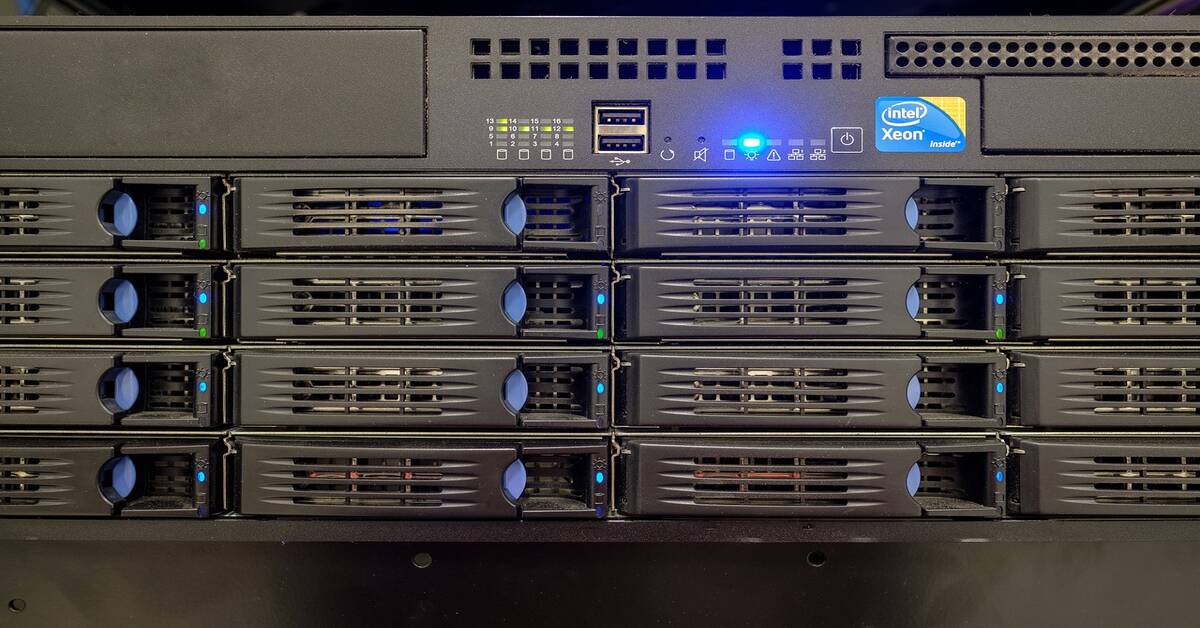
MikroTik introduced container support in RouterOS v7.4. This feature enables network engineers to run Docker-compatible containers directly on RouterBOARD hardware. The router becomes both a network device and an edge computing platform.
1. Introduction: The Evolution of MikroTik Container Support
Why Containers on Routers Matter
Reduced Hardware: Eliminate dedicated servers for lightweight network services
Edge Computing: Process data locally before sending to central systems
Simplified Deployment: Package network tools as portable containers
Practical deployment examples with real configurations
Management, security, and troubleshooting
Limitations and alternative approaches
2. Understanding MikroTik Container Architecture
2.1 What Are Containers in RouterOS v7?
MikroTik containers are OCI-compatible runtime environments. They execute isolated Linux applications on RouterOS. The implementation supports standard Docker images without modification.
Key Characteristics
OCI (Open Container Initiative) compliant
Compatible with Docker Hub images
Isolated from RouterOS core processes
Persistent storage support via mounts
Network integration through virtual interfaces
2.2 How MikroTik Container Implementation Works
Component
Function
Container Runtime
Executes OCI images in isolated namespaces
VETH Interface
Provides virtual network connectivity
Mount Points
Maps external storage for persistence
Environment Files
Passes configuration variables to containers
Registry Client
Pulls images from Docker Hub or private registries
2.3 Supported Hardware and Requirements
Compatible Architectures
ARM 32-bit: hAP ac², RB3011, RB2011 series
ARM 64-bit: RB5009, CCR2004, CCR2116, Chateau series
x86/x86_64: CHR (Cloud Hosted Router), RB1100AHx4, x86 installations
Minimum Requirements
Resource
Minimum
Recommended
RAM
256 MB free
1 GB+ free
Storage
External USB/disk
USB 3.0 or NVMe SSD
RouterOS Version
7.4beta4
7.8 or newer stable
2.4 Use Cases for MikroTik Containers
Network Services
DNS filtering (Pi-hole, AdGuard Home)
DHCP servers with advanced features
DNS-over-HTTPS/TLS proxies
Network monitoring agents
Security Applications
Intrusion detection agents (Suricata, Zeek)
Log collectors and forwarders
VPN endpoint services
Certificate management tools
Automation and Monitoring
SNMP collectors and processors
NetFlow/sFlow exporters
Prometheus exporters
Custom Python/Go automation scripts
3. Prerequisites and Initial Setup for MikroTik Containers
3.1 RouterOS Version Requirements
Check Current Version
/system resource print
Upgrade RouterOS
# Check for updates
/system package update check-for-updates

# Download and install
/system package update download
/system package update install
Latest: RouterOS 7.12+ (newest features and fixes)
3.2 Enabling Container Mode in RouterOS
Warning: Enabling container mode reduces system security. Only enable on devices requiring container functionality.
Enable Container Package
# Set device mode to allow containers
/system/device-mode/update container=yes

# System requires reboot - confirm when prompted
# Router will reboot automatically
# Connect VETH to container bridge
/interface bridge port add interface=veth-pihole bridge=bridge-containers
4.2 Configuring Container Networking
Complete Network Setup Example
# Create bridge
/interface bridge add name=bridge-containers

# Assign gateway address to bridge
/ip address add address=172.17.0.1/24 interface=bridge-containers

# Create VETH for first container
/interface veth add name=veth-container1 address=172.17.0.2/24 gateway=172.17.0.1

# Add VETH to bridge
/interface bridge port add interface=veth-container1 bridge=bridge-containers

# Enable NAT for internet access
/ip firewall nat add chain=srcnat src-address=172.17.0.0/24 action=masquerade

# Add DNS server for containers
/ip dns set allow-remote-requests=yes servers=8.8.8.8,8.8.4.4
Port Forwarding to Container Services
# Forward external port 8080 to container port 80
/ip firewall nat add chain=dstnat protocol=tcp dst-port=8080 action=dst-nat to-addresses=172.17.0.2 to-ports=80

# Forward DNS queries to Pi-hole container
/ip firewall nat add chain=dstnat protocol=udp dst-port=53 action=dst-nat to-addresses=172.17.0.2 to-ports=53
/ip firewall nat add chain=dstnat protocol=tcp dst-port=53 action=dst-nat to-addresses=172.17.0.2 to-ports=53
4.3 Setting Up Container Environment Variables
Create Environment File
# Create environment file on disk
/file add name=disk1/containers/pihole.env contents="TZ=America/New_York
WEBPASSWORD=SecurePassword123
DNSMASQ_LISTENING=all
PIHOLE_DNS_=8.8.8.8;8.8.4.4"
Common Environment Variables
Variable
Purpose
Example
TZ
Timezone setting
America/New_York
PUID
User ID for permissions
1000
PGID
Group ID for permissions
1000
4.4 Configuring Container Mounts
Create Mount Configuration
# Create mount for container data persistence
/container mounts add name=pihole-data src=disk1/containers/pihole dst=/etc/pihole

# Create mount for DNS masq configuration
/container mounts add name=pihole-dnsmasq src=disk1/containers/pihole-dnsmasq dst=/etc/dnsmasq.d
Mount Parameters
Parameter
Description
name
Mount configuration identifier
src
Path on MikroTik filesystem
dst
Path inside container
5. Deploying Docker Images on MikroTik RouterOS
5.1 Understanding Container Image Sources
Image Source Options
Docker Hub: Public registry with official images
Private Registry: Self-hosted or enterprise registries
Local Import: Tar files transferred to router
Architecture Matching
Select images matching your RouterBOARD architecture:
RouterBOARD
Architecture
Docker Tag
RB5009, CCR2004
ARM64
arm64, aarch64
hAP ac², RB3011
ARM
arm, armv7
CHR, x86 boards
x86_64
amd64, x86_64
5.2 Pulling Container Images via Registry
Configure Registry Access
# Configure Docker Hub registry
/container config set registry-url=https://registry-1.docker.io tmpdir=disk1/pull
Pull Image from Docker Hub
# Pull Pi-hole image for ARM64
/container add remote-image=pihole/pihole:latest interface=veth-pihole root-dir=disk1/containers/pihole-root mounts=pihole-data,pihole-dnsmasq envlist=pihole.env logging=yes

# Pull AdGuard Home for ARM64
/container add remote-image=adguard/adguardhome:latest interface=veth-adguard root-dir=disk1/containers/adguard-root logging=yes
Verify Image Download Progress
# Check container status
/container print

# Expected output during download:
# 0 name="" tag="pihole/pihole:latest" status=pulling
5.3 Importing Local Container Images
Export Image from Docker Host
# On Docker host - export image to tar file
docker pull pihole/pihole:latest
docker save pihole/pihole:latest -o pihole-latest.tar
Transfer and Import to MikroTik
# Transfer via SCP or FTP to router
# Example using SCP:
scp pihole-latest.tar admin@192.168.88.1:disk1/

# Import image on RouterOS
/container add file=disk1/pihole-latest.tar interface=veth-pihole root-dir=disk1/containers/pihole-root
# Check container status
/container print

# Test DNS resolution through Pi-hole
/tool dns-test name=google.com server=172.17.0.2

# Access web interface at http://172.17.0.2/admin
6.2 Example 2: Running AdGuard Home Container
AdGuard Home provides DNS filtering with a modern web interface. This example includes DNS-over-HTTPS support.
# Add to prometheus.yml on monitoring server
scrape_configs:
  - job_name: 'mikrotik-container'
    static_configs:
      - targets: ['172.17.0.4:9100']
6.4 Example 4: Custom Python Automation Container
Deploy custom scripts in containers for network automation. This example runs a Python application interacting with RouterOS API.
Prepare Custom Image (on Docker Host)
# Dockerfile
FROM python:3.11-alpine
RUN pip install routeros-api requests
COPY automation_script.py /app/
WORKDIR /app
CMD ["python", "automation_script.py"]
# Build and export
docker build -t mikrotik-automation:latest .
docker save mikrotik-automation:latest -o mikrotik-automation.tar
Deploy Custom Container
# Transfer tar file to router
# scp mikrotik-automation.tar admin@192.168.88.1:disk1/

# Create VETH
/interface veth add name=veth-automation address=172.17.0.5/24 gateway=172.17.0.1

# Add to bridge
/interface bridge port add interface=veth-automation bridge=bridge-containers

# Import and create container
/container add file=disk1/mikrotik-automation.tar interface=veth-automation root-dir=disk1/containers/automation-root start-on-boot=yes logging=yes

# Start container
/container start [find where root-dir~"automation"]
7. MikroTik Container Management and Operations
7.1 Starting, Stopping, and Restarting Containers
Basic Lifecycle Commands
# List all containers
/container print

# Start container by number
/container start 0

# Stop container by number
/container stop 0

# Start container by name/property
/container start [find where remote-image~"pihole"]

# Stop all containers
/container stop [find]
Auto-Start Configuration
# Enable start on boot
/container set 0 start-on-boot=yes

# Disable start on boot
/container set 0 start-on-boot=no

# Verify setting
/container print detail where start-on-boot=yes
# Verify VETH exists and has correct IP
/interface veth print

# Check bridge port membership
/interface bridge port print

# Verify NAT rule exists
/ip firewall nat print where src-address=172.17.0.0/24

# Test connectivity from RouterOS
/ping 172.17.0.2 count=3
Storage and Permission Errors
# Check mount configuration
/container mounts print

# Verify directories exist
/file print where name~"containers"

# Check disk space
/disk print
Debug Commands
# Enable container logging
/container set 0 logging=yes

# View system log
/log print where topics~"container"

# Check container shell (if supported)
/container shell 0
8. Security Best Practices for MikroTik Containers
# Monitor storage usage
/file print detail where name~"containers"

# Set up alert for storage threshold
/system script add name=storage-check source="
:local diskUsed [/file get [find name=\"disk1\"] size]
:if (\$diskUsed > 10000000000) do={
    /log warning \"Container storage exceeds 10GB\"
}
"
8.3 Image Security Considerations
Trusted Image Sources
Use official images from verified publishers
Prefer images with “Official Image” or “Verified Publisher” badges
Check image update frequency and maintenance status
Review Dockerfile sources when available
Minimal Base Images
Base Image
Size
Security
Alpine
~5MB
Minimal attack surface
Distroless
~20MB
No shell, no package manager
Debian Slim
~80MB
Reduced packages
Ubuntu
~70MB
More packages, larger surface
8.4 Access Control and Authentication
Restrict Container Management Access
# Create container admin group
/user group add name=container-admin policy=read,write,test,api

# Create limited user for container management
/user add name=containeradmin group=container-admin password=SecurePassword

# Limit API access
/ip service set api address=192.168.88.0/24
Secure Exposed Container Services
# Limit access to container web interfaces
/ip firewall filter add chain=forward dst-address=172.17.0.2 dst-port=80 src-address=192.168.88.0/24 action=accept comment="Allow LAN to Pi-hole web"
/ip firewall filter add chain=forward dst-address=172.17.0.2 dst-port=80 action=drop comment="Block external Pi-hole web access"
9. Advanced MikroTik Container Configurations
9.1 Multi-Container Deployments
IP Address Planning
Container
VETH Interface
IP Address
Pi-hole
veth-pihole
172.17.0.2
AdGuard Home
veth-adguard
172.17.0.3
Node Exporter
veth-nodeexp
172.17.0.4
Custom App
veth-custom
172.17.0.5
Inter-Container Communication
# Containers on same bridge communicate directly
# Example: Custom app connecting to Pi-hole DNS
# Configure custom app to use 172.17.0.2 as DNS server

# Verify connectivity between containers
# (From container shell if available)
# ping 172.17.0.2
9.2 Container Orchestration with Scripts
Startup Script for All Containers
/system script add name=start-all-containers source="
:delay 30s
/container start [find where start-on-boot=yes]
:log info \"All containers started\"
"

# Run on boot
/system scheduler add name=container-startup on-event=start-all-containers start-time=startup
# Use container as upstream DNS for RouterOS
/ip dns set servers=172.17.0.2 allow-remote-requests=yes

# Forward specific domains to container DNS
/ip dns static add name=internal.example.com address=172.17.0.2 type=FWD
RouterOS API Access from Container
# Enable API for container network
/ip service set api address=172.17.0.0/24,192.168.88.0/24 disabled=no

# Create API user for container
/user add name=container-api group=read password=APIPassword123

# Python example (in container):
# from routeros_api import RouterOsApiPool
# connection = RouterOsApiPool('172.17.0.1', username='container-api', password='APIPassword123')
# api = connection.get_api()
9.4 Performance Optimization Tips
Storage Optimization
Use USB 3.0 or NVMe storage for better I/O
Place frequently accessed data on faster storage
Use Alpine-based images for smaller footprint
Clean unused images and temporary files regularly
Memory Management
# Monitor memory during container operation
/system resource print

# Restart containers if memory constrained
:if ([/system resource get free-memory] < 50000000) do={
    /container stop [find]
    :delay 5s
    /container start [find where start-on-boot=yes]
}
Network Performance
Keep container bridge separate from main LAN bridge
Use hardware offloading where available
Minimize NAT rules for container traffic
Consider direct routing instead of NAT for internal services
10. Limitations and Considerations of MikroTik Containers
10.1 Current Platform Limitations
Feature Limitations
No Docker Compose: Cannot deploy multi-container applications from compose files
No Container Networks: No built-in container networking (CNI) – must use VETH
No Resource Limits: Cannot set CPU/memory limits per container
No Container Restart Policies: No automatic restart on failure
Limited Registry Support: Basic authentication only for private registries
No Volume Drivers: Only local filesystem mounts supported
Hardware Constraints
Device Class
Practical Container Limit
Recommended Use
Entry (hAP ac²)
1-2 lightweight
Single DNS filter
Mid-range (RB5009)
3-5 containers
DNS + monitoring
High-end (CCR2004+)
5-10 containers
Multiple services
10.2 When NOT to Use MikroTik Containers
Avoid Containers For:
Database servers: Performance and storage limitations
High-traffic web applications: CPU constraints
Production-critical services: Limited HA options
Complex multi-container apps: No orchestration
GPU workloads: No GPU passthrough
Windows containers: Linux only
Better Alternatives
Workload
Alternative Solution
Heavy applications
Dedicated Docker host
Kubernetes workloads
K3s on edge device
Windows services
Windows Server container host
Complex deployments
Docker Swarm or Kubernetes
10.3 Future Development
Potential Improvements (Community Requests)
Resource limits (CPU, memory)
Restart policies
Better logging integration
Container metrics export
Docker Compose support
Stay Updated
Check MikroTik changelog for new releases
Monitor MikroTik forum for container discussions
Test new features in lab before production
11. MikroTik Containers vs. Alternative Solutions
11.1 MikroTik Containers vs. Dedicated Docker Hosts
Factor
MikroTik Containers
Dedicated Docker Host
Hardware Cost
None (uses existing router)
Additional server required
Power Consumption
Minimal increase
Additional power draw
Performance
Limited by router hardware
Scalable to needs
Features
Basic container runtime
Full Docker ecosystem
Management
RouterOS CLI/GUI
Docker CLI, Portainer, etc.
Network Integration
Direct RouterOS integration
Separate network configuration
11.2 MikroTik vs. Other Router Container Solutions
Platform
Container Support
Maturity
Use Case
MikroTik RouterOS 7
OCI containers via VETH
Growing
Edge services
OpenWrt
LXC, Docker (limited)
Mature
Hobbyist/SOHO
VyOS
Docker support
Mature
Enterprise routing
pfSense
No native containers
N/A
Use separate host
Cisco IOS-XE
App hosting (IOx)
Mature
Enterprise edge
11.3 Hybrid Architecture Recommendations
When to Combine MikroTik + External Docker
Light on MikroTik: DNS filtering, monitoring agents, log forwarders
Heavy on Docker host: Databases, web apps, media services
Edge processing: Initial data filtering on MikroTik, analysis on server
WireGuard is a fast and modern VPN protocol that is now supported in MikroTik RouterOS version 7 and above. It provides high-speed tunneling using a simple configuration and strong encryption. This guide explains how to set up a WireGuard VPN on MikroTik routers using clear steps and real examples. Table of Contents 1. Why Use…
MikroTik routers are popular in enterprise and ISP networks for their flexibility, performance, and cost efficiency. Zabbix is a powerful open-source monitoring platform that can track the health and performance of your network devices in real time. When you integrate MikroTik with Zabbix, you gain deep visibility into bandwidth usage, CPU load, memory consumption, and…
Learn how to streamline your network operations by automating MikroTik RouterOS devices with Ansible. In this guide, we break down every step—from setting up prerequisites and crafting your first playbook to troubleshooting and implementing best practices. Designed for network engineers and systems administrators, this guide provides real configuration examples and actionable tips for network automation….
In this article, we present the 5 best computer networking books. Written by leading experts, these books cover essential topics for students, professionals, and hobbyists seeking to understand computer networking. They provide the knowledge and skills necessary to work with real-world networks. 1. Computer Networks – A. Tanenbaum, D. Wetherall Book is appropriate for Computer…
Integrating a new junior Network Operations Center (NOC) engineer into your team is a critical process that can significantly impact their success and the overall efficiency of your operations. A well-structured onboarding plan for a junior NOC Engineer not only helps new hires acclimate to their roles but also fosters a sense of belonging and…
Remote control software has become essential for IT professionals who need to access and manage systems from different locations. System administrators and network engineers rely on these tools daily to provide technical support, perform maintenance tasks, and address issues across distributed networks. While TeamViewer remains a popular choice, its cost structure often presents challenges for…