How to Upgrade and Downgrade MikroTik RouterOS Safely
A MikroTik RouterOS update can fix security issues, improve stability, add features, or resolve a known bug—but an unexpected reboot or configuration incompatibility can also interrupt routing, VPNs, wireless service, or remote management. The safest approach is to treat every production upgrade or downgrade as a controlled maintenance change.
The rule is simple: back up both a binary configuration and a readable export, verify the device model and architecture, read the release notes, use the correct package set, and test the router after it reboots. A downgrade is not a universal rollback button: hardware has a minimum supported RouterOS version, and settings may not be backward-compatible.
Choose the right release channel
RouterOS release channels define which versions the router offers through its update mechanism. Choose a channel based on your operational requirements, not simply because it displays the newest version.
| Channel | What it means | Practical guidance |
|---|---|---|
| Long term | Less frequent releases focused on critical fixes within a release branch. | Consider for environments that value slower change, but still review security advisories and available fixes. |
| Stable | Tested features and fixes intended for normal use. | A sensible default for many production networks after reviewing the changelog and device-specific reports. |
| Testing | Receives releases more frequently and gets basic internal testing. | Use for a lab or controlled validation, not as the default for a critical production router. |
| Development | Contains early or raw changes for evaluation. | Reserve for development and testing environments. |
The label alone does not guarantee that a release is appropriate for every model or configuration. Review the release notes and check for known issues affecting your interfaces, wireless drivers, routing protocols, VPNs, hardware offload, or other features you rely on. For production, schedule the change during a maintenance window and have someone able to reach the router locally if remote management fails.
Pre-upgrade and pre-downgrade checklist
Before changing RouterOS, record the current state and make sure you can recover access independently of the management path that may be interrupted.
- Identify the device model, current version, architecture, memory, and available storage.
- Read the changelog for the current version and the target version. For a major-version change, also read the migration notes.
- Confirm the current configuration is understood: WAN and LAN addressing, VLANs, firewall and NAT, routing, VPNs, wireless, DHCP/DNS, scripts, scheduled jobs, certificates, and remote-management access.
- Confirm you have valid credentials and a tested local or out-of-band recovery path. For a remote site, coordinate access with someone on site.
- Save a binary backup and a readable configuration export, then download both files off the router.
- Make sure the router has stable power and enough free storage to receive the packages. Avoid starting during unstable power or connectivity.
- Decide how success will be measured: management access, internet/WAN reachability, routing adjacencies, VPN tunnels, Wi-Fi clients, and critical application traffic.
For routers running BGP, OSPF, MPLS, complex routing filters, or production wireless, a lab or staged pilot on the same model and similar configuration is strongly preferable to a first-of-kind update on the live edge router.
Back up the router properly
Use both backup formats because they solve different recovery problems. The binary .backup file is intended primarily for restoring the same device, while the readable .rsc export is useful for reviewing configuration and reconstructing settings when a direct binary restore is not appropriate.
1. Save an encrypted binary backup
/system/backup/save name=before-routeros-change password="REPLACE_WITH_A_UNIQUE_STRONG_PASSWORD"Replace the example password with a unique, strong secret and store it in your password manager. RouterOS binary backups can contain sensitive information such as credentials and keys; without a password, a backup may be stored unencrypted. Download the resulting before-routeros-change.backup file to a secure workstation or backup repository rather than leaving the only copy on the router.
2. Export the configuration to a readable file
/export file=before-routeros-changeThis creates an .rsc text export under Files. By default, sensitive values are omitted. That is a useful security property, but it also means the export is not a complete archive of every secret or external database. Certificates, SSH keys, user passwords, The Dude data, and User Manager databases need separate handling where applicable. Do not add show-sensitive casually; if you need a sensitive export, protect it as a secret.
Verify that both files exist, have plausible sizes, and can be downloaded. Keep the backups with the exact RouterOS version, target version, device model, date, and a note of the change. MikroTik recommends restoring a binary backup on the same RouterOS version on which it was created; do not assume a v7 binary backup is a safe restore into v6 or vice versa. See the official RouterOS backup documentation.
Upgrade RouterOS safely
Method A: Use WinBox or WebFig
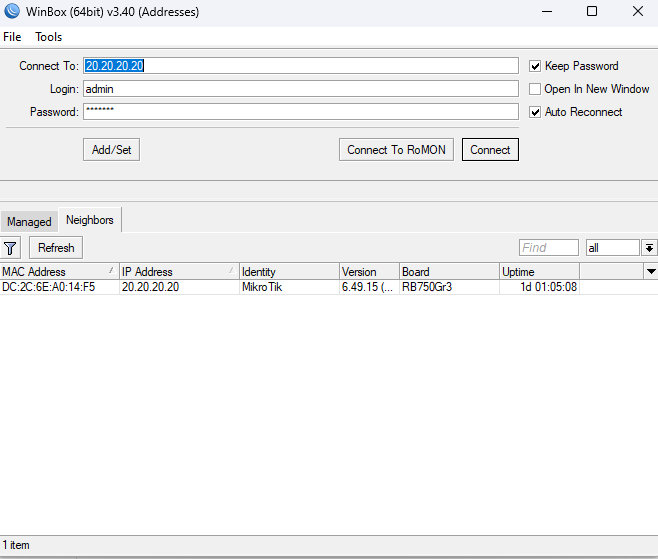
- Connect to the router and open System → Packages (or the update controls exposed by QuickSet on supported devices).
- Open Check for Updates and select the intended channel, usually Stable for a planned production update or Long-term where slower change is an explicit requirement.
- Review the offered version and changelog. Confirm it is suitable for the device and that you have followed any required intermediate upgrade steps.
- Choose Download if you want to control the reboot separately, or Download&Install to download and reboot after a successful download.
- Wait for the router to reboot, then reconnect and follow the verification checklist below.
The update service connects from the router to MikroTik’s download servers, so the router itself needs working DNS and outbound connectivity. The official manual documents HTTPS for the update connection and recommends certificate checking. Avoid switching to plain HTTP just to bypass a network policy; correct the DNS, firewall, routing, or certificate issue instead.
Method B: Use the RouterOS CLI
The following commands set the Stable channel, check availability, and start the installation. Run them deliberately from a management session and only when a reboot is acceptable.
/system/package/update/set channel=stable mode=https ip-version=auto check-certificate=yes
/system/package/update/check-for-updates
/system/package/update/print
Review the reported status and version before proceeding. When the target shown is the version you intend to install, start the update:
/system/package/update/installThe install action downloads the offered update and initiates the upgrade/reboot workflow. A session disconnect during the reboot is expected; it is not proof that the upgrade succeeded. Reconnect through the planned management path and verify the actual version and services.
Method C: Install a specific version manually
Manual installation is useful when you need an exact target version, when the router cannot reach the update server, or when planning a controlled rollback. Download RouterOS packages only from the official MikroTik software/download page. Select the correct architecture for the device, then include the main RouterOS package and any extra packages already installed that you intend to keep.
- Check the device architecture and installed packages using
/system/resource/printand/system/package/print. - Download the target version’s package files for that architecture. Match every required extra package to the same target version.
- Upload the
.npkfiles to the router’s root in Files using WinBox, WebFig, or a supported file-transfer method. - Confirm the file names and versions, then reboot during the maintenance window.
- After the router returns, inspect the active version, installed package versions, and logs.
Do not use ignore-missing as a generic fix for package problems. It deliberately allows an update while omitting missing packages; do so only when you understand which feature the omitted package provides and have chosen that outcome intentionally. Wireless driver packages and other optional packages can matter to the router’s functionality.
Verify the upgrade
Treat the change as incomplete until the router is reachable and the network behaves as expected. Run these read-only checks after reconnecting:
/system/resource/print
/system/package/print
/log/print without-paging
/system/routerboard/print
Confirm that the version field shows the intended RouterOS release and that installed packages are at the expected matching versions. Review the log for package installation errors, failed services, wireless driver issues, or repeated reboots. On RouterBOARD hardware, compare the current RouterBOOT firmware with the available upgrade firmware. MikroTik recommends upgrading RouterBOOT after RouterOS when an update is available; this is a separate firmware action and requires another reboot:
/system/routerboard/upgrade
/system/reboot
Run the RouterBOOT commands only on supported RouterBOARD devices and only after checking the reported firmware values. Then validate the functions that matter in your environment:
- Management: WinBox, WebFig, SSH, monitoring, and out-of-band access.
- WAN and LAN: address assignment, DNS, default route, NAT, VLAN tagging, and client connectivity.
- Routing: BGP/OSPF neighbors, route counts, policy filters, failover, and expected route selection.
- Services: VPN tunnels, wireless radios and clients, DHCP, queues, scripts, scheduled tasks, and external integrations.
- Security: firewall counters and logs, remote management restrictions, and any security controls that must remain active.
If a critical check fails, use the documented recovery plan rather than making unrelated changes while troubleshooting. Keep the before/after version, relevant logs, and observed symptoms with the change record.
Downgrade RouterOS safely
A downgrade is justified when a release introduces a confirmed regression, a required feature stops working, or a vendor support case calls for a specific version. It is not inherently safer than upgrading: older releases may contain vulnerabilities and bugs that have already been fixed.
Step 1: Check the hardware’s minimum supported version
/system/resource/printOn current RouterOS versions, read minimum-version. Some older versions show the same limit as factory-software. This is the oldest RouterOS version supported by the device’s bootloader. Do not attempt to install anything older than this minimum; MikroTik warns that doing so can cause severe instability or brick the device.
Step 2: Identify the architecture and all installed packages
/system/resource/print
/system/package/print
Record architecture-name (or the architecture field shown by your version) and list every installed package. On Wi-Fi devices, the required package can be a device-specific wireless driver such as wifi-qcom, wifi-qcom-ac, or wireless. Other installations may use additional packages. Exact package names depend on RouterOS generation and hardware.
Step 3: Download the complete target-version package set
From the official MikroTik downloads page, select the exact older release and correct architecture. Download the main routeros package and the target-version files for every installed extra package you need to retain. Keep all of the package versions aligned; a mixed package set can leave features unavailable or prevent the expected downgrade.
Step 4: Upload and execute the downgrade
- Upload the target-version
.npkfiles to the router’s root directory using WinBox, WebFig, or FTP. - Check Files and ensure the main package and every required extra package are present and belong to the same intended release and architecture.
- Run the downgrade command and confirm the reboot prompt.
/system/package/downgradeDuring reboot, RouterOS examines the uploaded packages and downgrades to the version they contain. Once the router returns, confirm the version with /system/resource/print, inspect packages and logs, and repeat the post-change service checks.
Changing the update channel may expose an older release in some cases, but it is not a dependable way to select every historical version. If an exact version is required, use the matching package set and the documented downgrade procedure.
Special considerations: RouterOS v6 and v7
A major-version transition needs more planning than a routine update within the same major branch. MikroTik’s current v7 migration notes say to bring a v6 or older installation to a suitable current Stable or Long-term v6 release first, then review compatibility before moving to v7. RouterOS v7 should not be run on hardware with less than 64 MB of RAM.
Most common configurations can be converted automatically, but certain deployments require special attention. BGP’s configuration model changed substantially; OSPFv2 and OSPFv3 are combined under the v7 routing menu; routing filters use a different script-like syntax; MPLS requires caution; PIM-SM migration has specific limitations; and old User Manager databases do not migrate directly to the new implementation. Verify the features used on your particular router against the official Upgrading to v7 guide.
A downgrade from v7 to v6 is especially not a clean time machine. A v7 configuration may contain settings that v6 does not understand. Do not restore a v7 binary backup into v6 and expect it to work. Use a backup made on the target version when possible, or prepare and review a version-compatible configuration export and restore missing secrets or databases separately. MikroTik documents a particular v6-to-v7 conversion option for loading a v6 backup into v7; that exception is not a general guarantee of cross-version backup compatibility.
Troubleshooting common problems
| Symptom | Likely causes | What to check |
|---|---|---|
| No update is offered | Release channel, DNS, firewall, routing, or an old version requiring an intermediate upgrade. | Check the selected channel, the update status, name resolution for upgrade.mikrotik.com, and outbound HTTPS connectivity. Read the version-specific upgrade notes. |
| The router disconnects after install | The router is still rebooting, or the management route changed. | Wait for the normal reboot interval, check local link/power indicators, and try the planned local or alternate management path before resetting anything. |
| The installed version did not change | Package did not download, wrong files were uploaded, package mismatch, or installation error. | Review /log/print without-paging, /system/package/print, available storage, architecture, and uploaded package versions. |
| Wireless or another feature is missing | An extra package or compatible driver was omitted, disabled, or has a mismatched version. | Compare the installed package list with the intended target release and install the matching package set. |
| Downgrade target is rejected or unsafe | Target release is older than the device’s minimum supported version. | Read minimum-version or the older factory-software field. Do not force a lower version. |
| The router will not boot normally | Damaged installation or deeper device issue. | Use the device-specific recovery procedure and consult MikroTik Netinstall documentation. Netinstall reformats storage and removes files/configuration unless a supported keep-configuration workflow is deliberately selected. |
For serious boot or file-system problems, our MikroTik Netinstall guide covers the recovery path. Netinstall is not the first step for an ordinary failed update: prepare the correct installer and backup first because reinstalling can erase the configuration and user files.
Common mistakes to avoid
- Updating a remote production router without a local recovery plan or maintenance window.
- Keeping the only backup on the router being upgraded.
- Assuming a binary backup will restore correctly across RouterOS major versions or to another device.
- Downloading a package for the wrong architecture or forgetting an installed extra package.
- Downgrading below
minimum-version/factory-software. - Treating a RouterBOOT firmware update as the same operation as a RouterOS package update.
- Skipping service verification just because the router responds to ping.
- Reverting to an older release without assessing the security fixes lost by that version.
Before making the change, review your router’s security baseline too; see the related MikroTik hardening checklist.
Conclusion
Safe MikroTik RouterOS maintenance depends less on clicking Download&Install and more on choosing a suitable release, preparing a recovery path, and verifying the result. Back up the configuration in both binary and readable forms, confirm architecture and package requirements, follow the official migration notes, and test routing, wireless, VPNs, and management after reboot. For a downgrade, check the device’s minimum supported version first and use a complete, version-matched package set.
For critical routers, practise the procedure on a comparable lab device and document the exact versions and recovery steps before touching production.
Frequently asked questions
Is upgrading RouterOS from WinBox safe?
Yes, WinBox’s System → Packages update workflow is a standard method. It is safe only when the release is appropriate for the model and configuration, a backup is available off-device, a reboot window is planned, and you verify services afterward.
Can I downgrade RouterOS to any previous version?
No. The router can only be downgraded as far as the minimum version supported by its hardware. Check minimum-version in the current RouterOS or factory-software in some older versions before uploading packages.
Do all RouterOS packages need to match the target version?
For a controlled manual downgrade, upload the main RouterOS package and every installed extra package you need, all for the target release and the correct architecture. This is especially important for wireless driver and other optional packages.
Should I restore my .backup file after a downgrade?
Restore a binary backup on the same device and RouterOS version it was created for whenever possible. A backup from another major version is not a universal rollback method; version-specific configuration conversion has limitations. Keep a readable export as well, and review it before importing across versions.
Do I need to upgrade RouterBOOT after RouterOS?
On supported RouterBOARD hardware, check /system/routerboard/print after the RouterOS update. MikroTik recommends upgrading RouterBOOT when a newer firmware is available. It is a separate step and requires a reboot.
Should I choose Stable or Long term?
Choose based on your tolerance for change and the fixes you need. Stable includes tested features and fixes; Long-term releases less frequently and focuses on critical fixes within a branch. Neither choice removes the need to read the changelog, assess security relevance, and validate your configuration.
References
- MikroTik RouterOS Manual — Upgrade (release channels, standard and manual upgrade, troubleshooting, RouterBOOT).
- MikroTik RouterOS Manual — Downgrading RouterOS (minimum-version, package selection, and downgrade workflow).
- MikroTik RouterOS Manual — Backup (binary backup, encryption, restore limitations, excluded databases).
- MikroTik RouterOS Manual — Configuration Management (export/import, history, Safe Mode, and configuration handling).
- MikroTik RouterOS Manual — Upgrading to v7 (major-version migration and feature-specific caveats).
- MikroTik RouterOS Manual — Netinstall (reinstallation and recovery).
- MikroTik — Official software downloads (release packages and architecture selection).
Check our list of MikroTik guides