How to Download and Install Winbox for MikroTik: Complete Guide for Windows, Mac, and Linux
WinBox is the tool most engineers reach for first when they sit down in front of a MikroTik device. It is faster to navigate than the terminal for most day-to-day tasks. It also exposes nearly every RouterOS setting through a clean graphical interface. This guide covers three things: downloading and installing WinBox correctly on Windows, macOS, and Linux; connecting to a device for the first time; and the security settings worth enabling before you rely on it daily.
Table of Contents
- What Is WinBox and Why You Need It
- New WinBox vs. WinBox Legacy
- Before You Download: Verify the Official Source
- Installing WinBox on Windows
- WinBox on macOS
- WinBox on Linux
- Running Legacy WinBox via Wine (Fallback Method)
- First Launch: Connecting to a MikroTik Device
- Neighbor Discovery Explained
- Security Settings Worth Enabling
- Useful Features for Network Engineers
- Troubleshooting Common Connection Issues
- Quick-Reference Cheat Sheet
- Conclusion
What Is WinBox and Why You Need It
- WinBox is MikroTik’s official GUI utility for configuring and monitoring RouterOS devices — routers, switches, and access points.
- Every WinBox menu mirrors a RouterOS console command directly, so nothing in the GUI is a simplified or limited version of what the CLI offers.
- It connects over IP or MAC address, which matters specifically when a device has no IP configured yet, or its IP is unreachable but it still sits on the same broadcast domain.
- It is free. MikroTik distributes it directly, with no license or account required.
New WinBox vs. WinBox Legacy
MikroTik’s download page currently offers two distinct builds. Picking the right one matters before you install anything.
- WinBox (current). A rewritten, natively cross-platform application with real Windows, macOS, and Linux builds — no Wine or compatibility layer required on any platform. This is the new version and the one most engineers should install today.
- WinBox (Legacy). The original, classic-interface build. It still receives updates but remains Windows-only as a native application. Some engineers prefer its layout out of habit, or need it for compatibility with older workflows and documentation built around the classic UI.
- Both connect to the same RouterOS devices. The choice is about interface and platform, not RouterOS compatibility. If you are on macOS or Linux and want a native application, the current cross-platform build is the only option. Legacy on those platforms needs Wine instead — see the fallback section below.
Before You Download: Verify the Official Source
- Download only from mikrotik.com. WinBox is a management tool with direct access to your network infrastructure. A modified copy from a third-party mirror is a realistic attack vector here, not a theoretical one.
- Check the file is signed. MikroTik signs the official Windows build with an Extended Validation certificate issued to SIA Mikrotīkls, its legal entity. Windows shows this publisher name in the file properties or the SmartScreen prompt on first run.
- Avoid third-party “WinBox download” sites that repackage the installer, even when they claim to mirror the official file — there is no reason to use anything other than MikroTik’s own download page.
Installing WinBox on Windows
- Go to MikroTik’s official download page and locate the WinBox section.
- Choose the correct build for your system: a 64-bit x86 build for standard Windows PCs, or the ARM64 build if you are running Windows on ARM hardware.
- Download the file and confirm the publisher shows as SIA Mikrotīkls before running it.
- Run the executable — WinBox on Windows requires no installation wizard; the download itself is the runnable application.
- On first launch, Windows SmartScreen may prompt a warning for a newly downloaded executable — verify the publisher name matches before proceeding past it.
WinBox on macOS
- Download the native macOS build from MikroTik’s download page — no separate Wine installation is needed for the current cross-platform version.
- Open the downloaded file and move the application to your Applications folder, following the standard macOS install pattern.
- On first launch, macOS Gatekeeper may flag the app as downloaded from the internet — open it via right-click > Open the first time to bypass the warning, after confirming it came from the official MikroTik download page.
- Grant any local network permission macOS requests — WinBox needs this to discover devices on the local network via broadcast.
WinBox on Linux
- Download the native Linux build from MikroTik’s download page, matching your distribution’s package format if one is offered, or the generic binary otherwise.
- Make the downloaded file executable if it is distributed as a raw binary:
chmod +x winbox ./winbox - Some distributions may prompt for additional runtime dependencies on first launch — install what the system package manager reports as missing.
Running Legacy WinBox via Wine (Fallback Method)
Use this method only if you specifically need the Legacy build on macOS or Linux, since the current cross-platform build runs natively without it.
- Install a current release of Wine for your platform.
- Download the Legacy WinBox executable (
WinBox64.exe) from MikroTik’s download page. - Launch it through Wine — on macOS, this typically means opening the file with the Wine application via “Open With”; on Linux, running
wine WinBox64.exefrom a terminal. - Expect minor interface quirks running under Wine that do not occur with a native build — this is expected behavior for any Windows application run through a compatibility layer, not a WinBox-specific bug.
First Launch: Connecting to a MikroTik Device
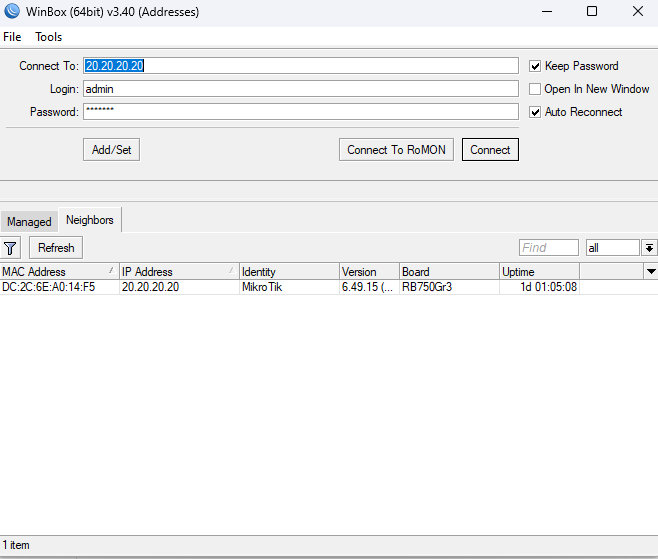
- Open WinBox — the connection window (the “WinBox loader”) appears immediately, defaulting to a simple mode layout.
- Enter the device’s IP address or MAC address in the connect field. MAC-based connection is what makes WinBox useful for a factory-default device with no IP configured yet.
- Enter the username and password — for a factory-default RouterOS device, this is typically
adminwith no password, though current RouterOS versions increasingly prompt for a password to be set on first login rather than shipping fully blank. - Specify a non-default port if needed, appended after the IP with a colon:
192.168.88.1:9999This matters when the WinBox service has been moved off its default port for security reasons — see the security section below.
- Click Connect. A successful connection opens the full RouterOS configuration menu tree on the left side of the window.
Neighbor Discovery Explained
- WinBox’s Neighbors tab lists MikroTik devices broadcasting discovery packets on directly connected network segments, without requiring you to already know their IP addresses.
- This is how you reach a factory-default device — connect by clicking its MAC address entry directly from the neighbor list, bypassing the need for IP connectivity entirely.
- IPv6-enabled routers appear twice in the neighbor list: once with an IPv4 entry, once with an IPv6 link-local entry. Discovery reports both where available.
- Neighbor discovery only works on directly connected segments by default; a device on a different subnet, reachable only through a router, will not appear here unless discovery traffic is specifically forwarded (or RoMON is in use — see below).
Security Settings Worth Enabling
- Set a master password. WinBox can save device credentials for quick reconnect — a master password encrypts that saved credential store, so a stolen laptop does not hand over router access along with it.
- Move the WinBox service off its default port on the RouterOS side, reducing exposure to automated scanning:
/ip service set winbox port=9999 - Restrict WinBox access to specific management addresses directly on the router, rather than relying on the client side alone:
/ip service set winbox address=10.0.0.0/24 - Never expose the WinBox port to the public internet. Management access belongs behind a VPN or a restricted management network — direct WAN exposure is one of the most common findings in any MikroTik security audit.
- Use Safe Mode when making risky changes remotely — RouterOS automatically reverts any unsaved changes if the WinBox session disconnects before you confirm them, which prevents locking yourself out with a bad firewall or IP change.
Useful Features for Network Engineers
- Real-time monitoring — CPU, memory, and interface traffic graphs update live without needing to run separate CLI monitoring commands.
- Drag-and-drop file transfer — move backup files, scripts, or firmware packages directly into the Files section by dragging them into the WinBox window.
- Built-in script editor — write and edit RouterOS scripts directly in WinBox, with the same syntax as the terminal.
- RoMON (Reach Me Over the Network) — lets WinBox discover and connect to a MikroTik device with no IP configured and no direct Layer 3 path, by tunneling the connection through another MikroTik device that does have reachability. Genuinely useful for a factory-reset device in a rack without a laptop physically nearby.
Troubleshooting Common Connection Issues
Device does not appear in the Neighbors list
- Cause: The device sits on a different broadcast domain, or a firewall along the path is filtering discovery traffic.
- Fix: Confirm you are on the same physical/VLAN segment as the target device, or connect by known IP address directly instead of relying on discovery.
“Couldn’t load ‘RouterOS’ file” or similar connection failure
- Cause: A version mismatch between an old WinBox build and a newer RouterOS release, or a corrupted local WinBox cache.
- Fix: Update to the current WinBox release, and clear the local WinBox cache if the problem persists after updating.
Connection times out on a known-good IP
- Cause: The WinBox service is disabled, running on a non-default port you are not specifying, or restricted to a different management address range.
- Fix: Confirm the service is enabled and check the configured port and address restriction from a console session if you have another way in:
/ip service print
Gatekeeper or SmartScreen blocks the download
- Cause: Standard OS behavior for a freshly downloaded executable from the internet, not an indication of a problem with the file itself.
- Fix: Confirm the file came from the official MikroTik download page, then proceed past the OS warning using the platform-specific override (right-click > Open on macOS, “More info” > “Run anyway” on Windows).
Quick-Reference Cheat Sheet
# Connect syntax with a non-default port
192.168.88.1:9999

# Restrict WinBox access on the router side
/ip service set winbox address=10.0.0.0/24

# Change the WinBox service port
/ip service set winbox port=9999

# Confirm current WinBox service status and port
/ip service print

# Linux: make the downloaded binary executable
chmod +x winbox && ./winbox

# Wine fallback (Legacy build only, Mac/Linux)
wine WinBox64.exe
Conclusion
WinBox installation itself is simple now. The current build runs natively across Windows, macOS, and Linux. The security steps are the ones worth taking seriously. Set a master password. Restrict the management address on every router. Keep the WinBox port off the public internet entirely. Get those three right, and WinBox stays the fast, reliable tool it is meant to be — not the easiest way into your network for someone else.
Check our list of MikroTik guides