How to Reset a MikroTik Router and Recover a Lost Password (Every Method)
Resetting a MikroTik router can mean anything from restarting RouterOS to erasing its configuration or reinstalling the operating system. Those actions are not interchangeable. If you have lost the administrator password, the safest supported recovery route depends on whether another administrator account, a usable backup, or physical access to the device is available.
This guide covers the practical methods for RouterOS 7 and explains what each one changes. Important: a factory reset normally removes the existing configuration, including firewall rules, VPNs, VLANs, wireless settings, and ISP connection details. Before proceeding, make sure you are authorized to administer the router and understand the service impact.
Choose the right reset or recovery method
| Situation | Recommended method | What happens |
|---|---|---|
| The router is slow or temporarily unresponsive | Reboot | Restarts the device without intentionally erasing configuration |
| You can still sign in and want a clean configuration | RouterOS reset-configuration | Resets configuration according to the selected options |
| You forgot the password and have no other admin access | Physical reset button, following the model’s instructions | Usually restores factory configuration and removes the forgotten credentials |
| RouterOS is damaged or the device needs a clean reinstall | Netinstall | Reinstalls RouterOS; expect to rebuild the configuration |
There is no supported way to reveal a forgotten RouterOS user password in plaintext: user passwords are stored as hashes and are not exported, even with show-sensitive. First check the device label, packaging, or Quick Guide for its factory password; newer devices use a unique per-device password, while older models may use admin with a blank password. If the label is missing, MikroTik says to contact the distributor that supplied the device. If the password cannot be retrieved, a full configuration reset or Netinstall can restore access, but both require careful planning because configuration and data may be lost.
Before resetting: protect the configuration
If you can still log in, save both a binary backup and a text export before making changes. A binary backup is useful for restoring a compatible device in a similar environment; a text export is easier to inspect and selectively rebuild. Keep both files somewhere secure and separate from the router.
- Connect from a trusted LAN or directly to the router where possible.
- In WinBox, open Files and create a backup, or use the terminal commands below.
- Download the resulting files to a secure computer and verify that they are present.
- Record ISP details, VLAN IDs, PPPoE credentials, static addresses, VPN settings, and any non-default port assignments that you may need to recreate.
/system backup save name=before-reset password="Use-A-Unique-Backup-Password"
/export file=before-reset
The binary backup contains sensitive configuration, including passwords and keys. Encrypt it with a strong backup password and store it securely; without a password it is unencrypted. A binary backup is intended to restore reliably on the same device because it includes device MAC addresses. A plain-text /export is useful for reviewing or selectively rebuilding configuration, but it does not export RouterOS user passwords, SSH keys, installed certificates, or certain application databases. User passwords are never included, even with show-sensitive. Review exports before sharing them. For a broader backup walkthrough, see backing up and restoring MikroTik configurations.
Method 1: Reboot the MikroTik router without resetting it
If the goal is simply to restart the router, do not use a factory reset. From an authenticated RouterOS terminal, run:
/system rebootConfirm the prompt if one appears. You can also reboot from WinBox or WebFig using the system controls. A reboot interrupts active connections but should preserve the configuration. If the router does not respond, use its normal power procedure only after considering the risk of interrupting writes or attached storage.
Method 2: Reset configuration from RouterOS or WinBox
Use this method only when you can still authenticate and intend to clear or replace the current configuration. In a RouterOS terminal:
/system reset-configurationRouterOS asks for confirmation and then restarts. The command supports options that affect whether the default configuration is applied, whether a backup is made, and whether the device waits before rebooting. Check the RouterOS documentation and inspect the command’s available parameters for your installed version before using any option.
In WinBox, the reset control is available under System (the exact presentation can vary by version). Read the confirmation carefully. Do not select a no-defaults option unless you are prepared to configure management access, addressing, DHCP, firewall policy, and routing yourself. A router with no default configuration may not be reachable at the address or interface you expect.
After the reset, reconnect using the device’s documented default access method. The default username is commonly admin, but the password may be blank on older devices or a unique value printed on the label on newer devices. The default IP address, accessible ports, and default configuration also vary by model. Check the label, Quick Guide, and official manual for your exact hardware rather than assuming every device uses the same defaults.
Method 3: Use the physical reset button when the password is lost
If you cannot log in because the administrator password is unknown, the physical reset button is a common recovery path. It resets RouterOS configuration to the device’s factory defaults, including its factory login credentials, and removes the custom configuration. Important: on newer MikroTik devices the factory password is unique to that device and is printed on the product label, packaging, or Quick Guide; it is not necessarily blank. Older models may use admin with no password. If the label is missing or unreadable, contact the distributor that supplied the device before assuming the reset will give you a blank-password login.
- Identify the exact router model and find its reset-button instructions in the hardware guide.
- Disconnect any equipment that could be affected by an unexpected configuration change, and make sure you have the ISP and network details needed to rebuild service.
- Power the router and follow the reset-button sequence in the hardware manual for that exact model. MikroTik’s general RouterBOOT instructions describe releasing when the LED starts flashing to reset configuration; holding longer can select CAPs mode or Netinstall instead. The LED sequence and available functions vary by model, and Protected RouterBOOT settings can change button behavior.
- Wait for the reset process and reboot to finish. Do not repeatedly power-cycle the router while it is resetting.
- Reconnect using the model’s documented default access method, then immediately set a strong, unique administrator password.
Do not guess the hold time. On some MikroTik hardware, holding the button for longer can invoke a different function, such as entering RouterBOOT or initiating Netinstall mode. Follow the specific device manual. If the reset button is inaccessible or damaged, consult MikroTik support or the hardware documentation for that model.
Method 4: Reinstall RouterOS with Netinstall
Netinstall is MikroTik’s recovery and installation utility for supported devices. It is useful when RouterOS needs to be reinstalled, the installation is damaged, or access passwords have been lost. Netinstall reformats the system drive, so user files and other data can be lost. Its Keep old configuration option can restore core configuration and users, but that is generally not appropriate when the administrator password itself is the problem because it can bring the inaccessible user configuration back. For password recovery, plan for a clean/default configuration and rebuild settings from records or a suitable export. Netinstall’s default behavior and options differ between the Windows GUI and Linux CLI, so read the current instructions carefully before installing.
- Download the correct Netinstall utility and RouterOS package for your device architecture from the official MikroTik downloads page.
- Read the Netinstall instructions for your hardware and prepare a computer with a wired Ethernet connection. Configure the computer’s network interface as required by the official procedure.
- Connect the computer to the router’s documented Etherboot port (often the first Ethernet port or a port marked BOOT, depending on the model). Follow the device’s Etherboot/RouterBOOT instructions; reset-button timing and supported boot methods vary by hardware.
- Put the router into the documented Etherboot/Netinstall mode, then select the detected device and the correct RouterOS package in Netinstall.
- Start installation and wait for it to complete. Do not remove power or Ethernet during the process.
- After the router restarts, connect using the documented first-login process, update RouterOS and RouterBOARD firmware as appropriate, and restore or rebuild the configuration.
Netinstall screens and supported options can change between versions. Use MikroTik’s current documentation rather than relying on an old screenshot or an assumed button sequence.
What if you have a backup but forgot the password?
A binary backup contains sensitive configuration, including passwords and keys, and restoring it can restore the previous user configuration and lock you out again. Use it only when you know the backup password and intend to restore that prior state. MikroTik recommends restoring a binary backup on the same device and RouterOS version; the backup includes device MAC addresses and may misconfigure interfaces if restored to different hardware.
A text export is useful as a reference for rebuilding settings, but it does not include RouterOS user passwords, SSH keys, installed certificates, or certain application databases. Rebuild access credentials separately and restore configuration in stages. Avoid blindly importing an entire export into different hardware or RouterOS versions: interface names, hardware capabilities, packages, and menu paths may differ.
After the reset: secure the router before reconnecting it to the internet
- Set a unique administrator password. Do this immediately and store it in an approved password manager.
- Update RouterOS. Use the appropriate stable channel and follow the release notes for your device.
- Update RouterBOARD firmware. Check the installed and available firmware versions and reboot if an update is applied.
- Review default users and services. Remove or disable accounts you do not need, and disable unused management services.
- Restrict management access. Allow WinBox, SSH, and WebFig only from trusted management networks. Do not expose router administration directly to the public internet.
- Inspect firewall and WAN rules. Confirm that unsolicited access from the WAN is blocked and that only required services are reachable.
- Rebuild and test the network. Verify WAN connectivity, LAN addressing, DHCP, DNS, Wi-Fi, VLANs, VPNs, and remote access one item at a time.
- Create a fresh backup. Save a new binary backup and text export after the secure baseline is working.
For the complete first-login and secure-baseline workflow, see MikroTik router setup from scratch. If you need help choosing the management interface, see WinBox and CLI for MikroTik management.
Troubleshooting common reset problems
The router does not appear in WinBox after reset
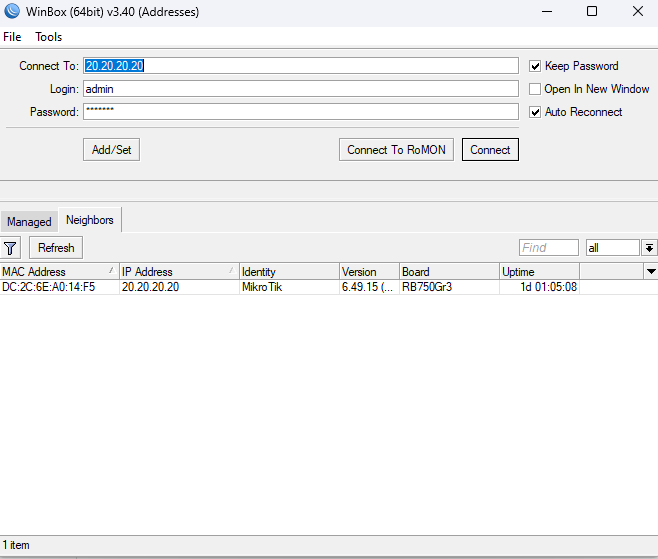
Connect by Ethernet to a LAN port identified in the hardware guide, disable conflicting network adapters temporarily, and check whether WinBox can discover the device at Layer 2. Your computer may need to obtain a new DHCP lease. Do not assume the router’s default IP or LAN port is identical across models.
The reset button seems to do nothing
Check the exact model’s instructions, button location, LED indicators, and timing. A button sequence intended for one model may invoke a different boot mode on another. If the device is still running a configured RouterOS instance and you can authenticate, use the documented software reset instead.
Netinstall cannot detect the router
Recheck the required Ethernet port and boot mode, use a direct wired connection, temporarily disable other computer network interfaces if they interfere, and verify the computer’s IP configuration against the current Netinstall instructions. Also confirm that the downloaded package matches the device architecture.
The router resets but internet access does not return
A factory reset may remove ISP-specific settings such as PPPoE credentials, VLAN tagging, static WAN addressing, or MAC binding requirements. Contact your ISP or consult your saved configuration before changing random WAN settings.
Frequently asked questions
Can I recover a forgotten MikroTik password without resetting the router?
There is no supported method to reveal a forgotten administrator password in plaintext. If another authorized administrator account or management session exists, use it to create a new credential. Otherwise, expect to reset the device and rebuild or restore its configuration.
Does the reset button delete all settings?
It normally restores factory configuration, which removes the custom configuration. The exact reset behavior and button sequence depend on the model and hardware instructions.
Will Netinstall keep my configuration?
Do not rely on it to preserve your configuration. Treat Netinstall as a reinstall procedure and make sure you have a separate backup or a rebuild plan.
Is rebooting the same as resetting?
No. A reboot restarts the router and normally keeps its configuration. A configuration reset clears settings according to the selected reset options.
What is the safest way to avoid being locked out again?
Use a unique password stored securely, maintain a second authorized administrator account only if your access policy allows it, keep encrypted backups in a protected location, and document the recovery procedure for the exact hardware model.
Official MikroTik references
- MikroTik documentation: Configuration management and reset
- MikroTik documentation: Default configuration passwords
- MikroTik documentation: Backup and restore
- MikroTik documentation: Netinstall
- MikroTik documentation: RouterBOOT and reset button
- MikroTik software downloads and Netinstall
Conclusion
Choose the least destructive method that solves the problem: reboot for a temporary issue, use RouterOS reset-configuration when you still have access, use the model-specific reset-button procedure when the password is lost, and reserve Netinstall for reinstall or boot-recovery situations. Before any destructive step, protect your backup and record the settings needed to restore service. After recovery, secure management access and verify the firewall before reconnecting the router to an untrusted network.
Check our list of MikroTik guides